
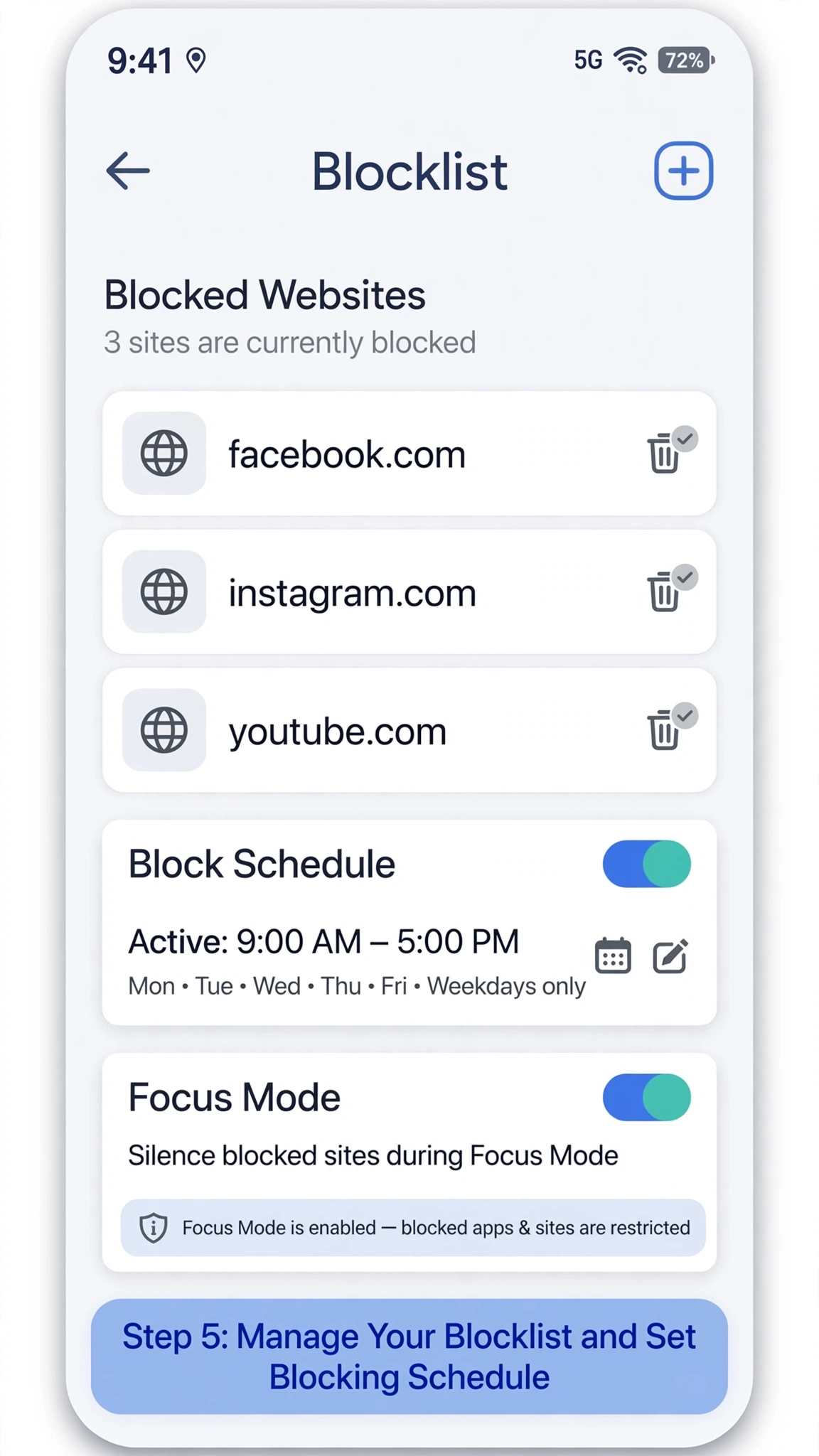
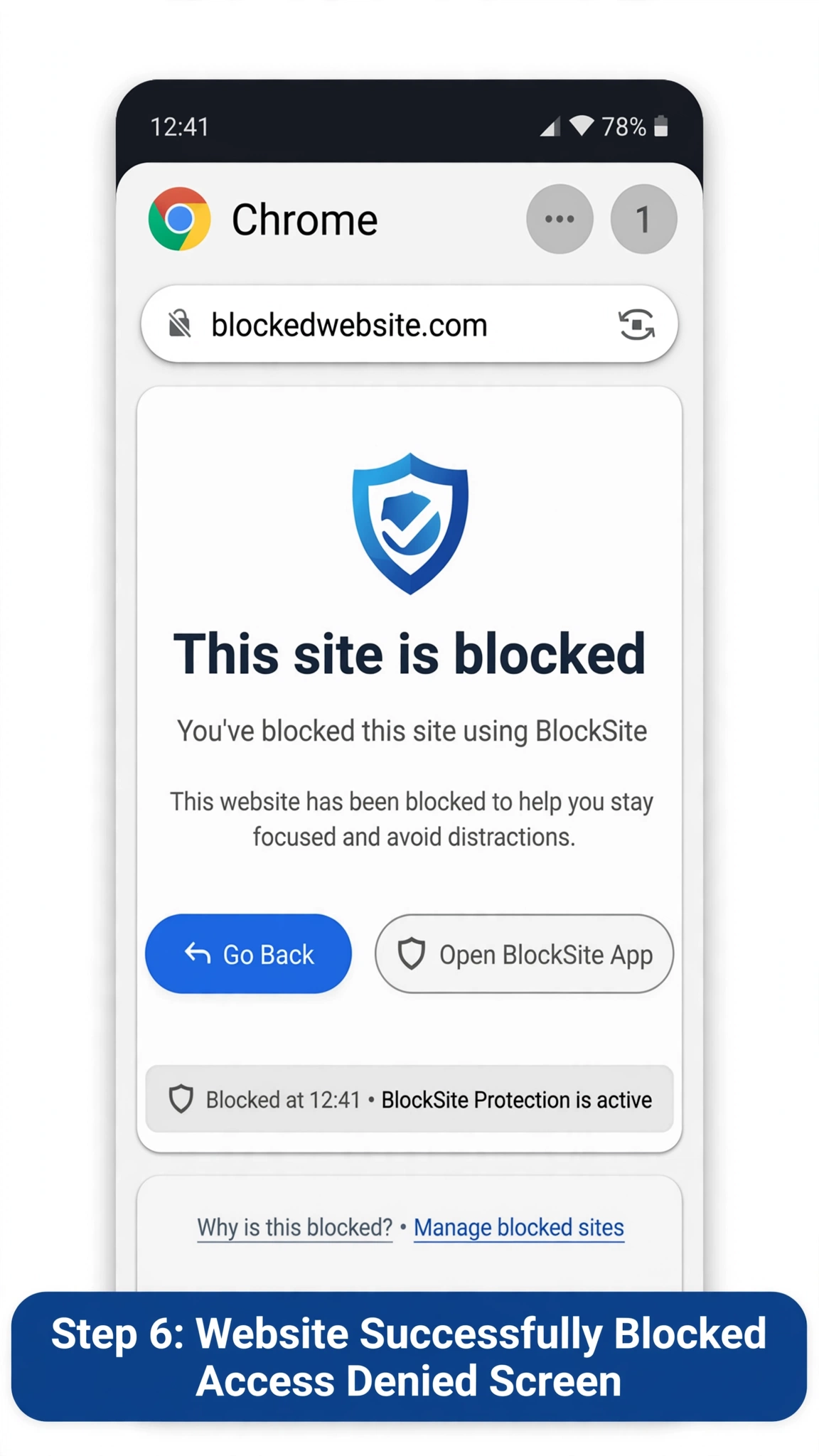
Smartphones have made the internet available almost everywhere, but unrestricted browsing is not always desirable. A website may be distracting, unsuitable for children, unsafe, or simply something you do not want accessible on a particular device.
Android now offers several ways to control web access, but the correct method depends on what you actually want to achieve. Blocking explicit content, restricting one particular website, limiting browsing time, and protecting against malicious websites are different tasks. Using the wrong setting can give you a false sense of protection.
This guide explains the current options available on Android, including built-in parental controls, Google Family Link, SafeSearch, Chrome security features, and Digital Wellbeing.
Why Website Restrictions on Android Matter
Website blocking is often associated with parental controls, but there are several other reasons to restrict online access.
For example, someone may want to reduce access to distracting websites while studying or working. Parents may want to prevent children from reaching sexually explicit material. A shared device may require additional browsing restrictions, while another user may simply want better control over daily internet habits.
There is also an important distinction between content filtering and security protection. A content filter attempts to restrict particular categories of websites, while security systems such as Google Safe Browsing are designed to warn users about threats such as phishing, malware, malicious downloads, and social-engineering attacks. Chrome’s security system does not function as a personal blacklist for websites.
Understanding this difference makes it much easier to select the right Android feature.
What Is the Best Way to Block Websites on a Phone?
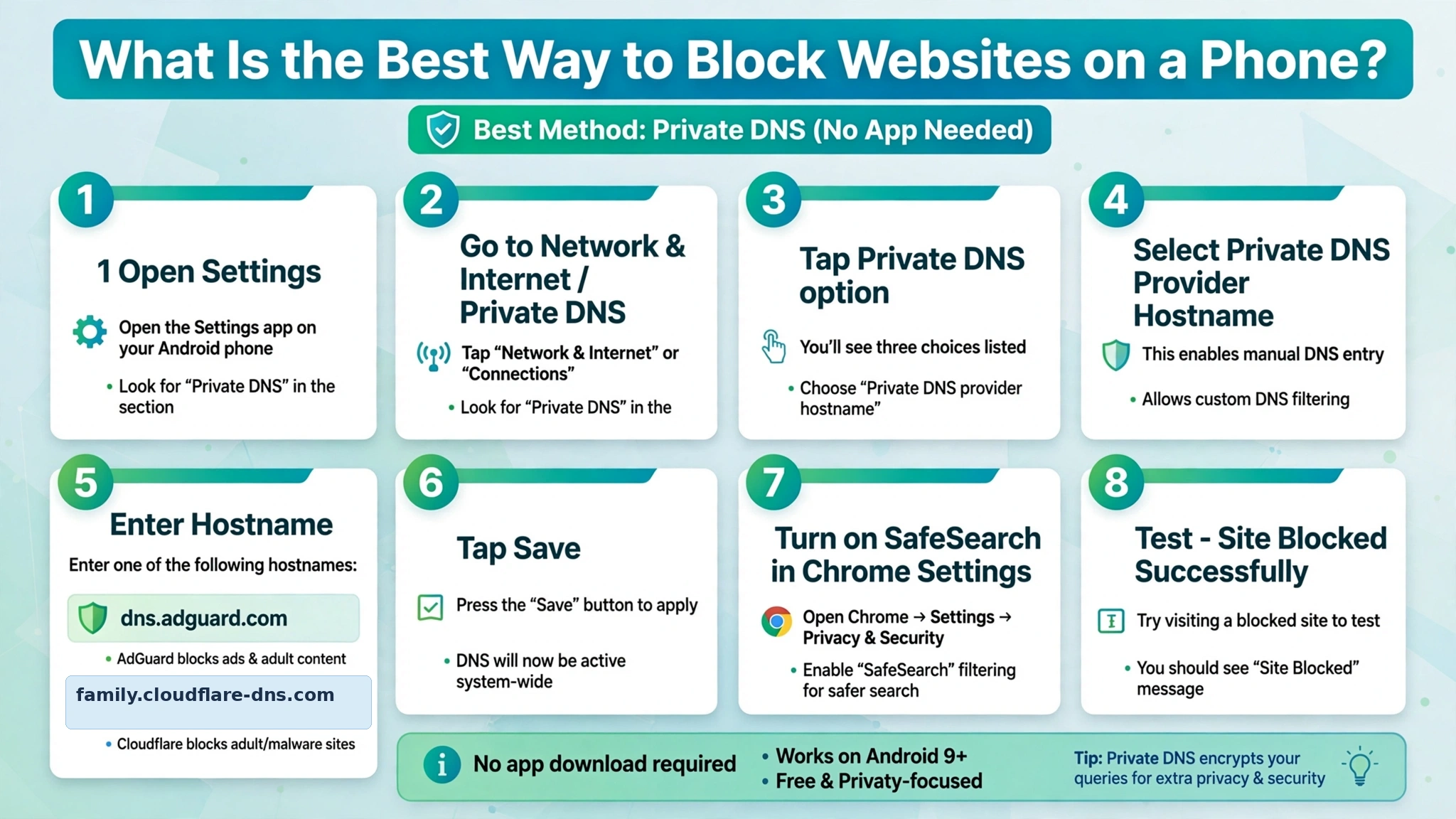
The answer depends on the Android version and the type of restriction required.
On newer Android devices, Google provides Web content filters as part of the device’s parental-control system. The current Android documentation says these controls are available on Android 17 or later and can be used to restrict explicit websites and filter explicit search results.
For a supervised child’s account, Google Family Link provides another route. Parents can configure Chrome to try to block explicit websites or manually allow and block particular websites.
For users who are mainly trying to reduce their own browsing time, Digital Wellbeing can be more appropriate than a permanent block because it allows daily limits for websites accessed through Chrome.
So, before changing anything, decide whether your goal is content filtering, individual-site restriction, parental supervision, security, or time management.
How to Block Internet Sites on Android Using Built-In Controls
If your Android device supports the newer parental-control system, you can use the built-in web filtering feature rather than installing a separate blocking application.
Go to:
Settings → Parental controls → Web content filters
After setting up the required parental-control PIN, Android provides options related to web content.
The available controls include:
- Block explicit sites
- Filter explicit search results
The first option is intended to restrict sexually explicit websites, while the second filters sexually explicit and violent material from supported search results.
There is an important technical limitation: Google’s current documentation says the feature requires specific minimum versions of the Google app, Chrome, and Android System WebView. The documented minimums are Google app 16.42 or later, Chrome 140.0.7332.0 or later, and Android System WebView 139 or later. Other web providers can also integrate with the feature if they support it.
That means two Android phones can have different web-filtering options even if they look similar. Android version, installed app versions, manufacturer software, and supported browsers can all affect what appears in Settings.
Using Google Family Link for a Child's Android Phone
Family Link is designed for supervised Google Accounts and gives parents additional controls over a child’s Android experience.
For Chrome, parents can choose a content-filtering option designed to try to block explicit websites. Family Link also allows parents to manually allow or block specific websites.
The general workflow is:
Family Link → Select your child → Controls → Google Chrome and Web
From there, parents can configure the available Chrome browsing restrictions.
One useful feature is the ability to manage individual websites instead of relying entirely on automated classification. This can be helpful when a parent wants to prevent access to a particular website that does not necessarily fall into Google’s explicit-content category.
Family Link also provides controls beyond websites. Depending on the supervised device and account setup, parents can manage apps, screen time, and certain Google services.
How to Block Inappropriate Websites on Android
If the main concern is sexually explicit or violent online material, use a combination of web filtering and search filtering instead of relying on one feature.
Android’s current Web Content Filters can restrict explicit websites and filter explicit search results on supported versions of the Google app, Chrome, and Android System WebView.
Google Search has a separate SafeSearch system. On Android, SafeSearch provides three settings: Filter, Blur, and Off. Filter is designed to block explicit results, while Blur primarily hides explicit images.
However, SafeSearch has a major limitation that users often overlook: it only affects Google Search. It does not automatically filter websites opened directly or results from another search engine.
Therefore, enabling SafeSearch alone should not be treated as a complete web-blocking solution.
SafeSearch vs Web Content Filtering
These two Google features may sound similar, but they operate at different levels.
SafeSearch works on Google Search results. Its purpose is to reduce explicit material appearing when someone searches through Google.
Web Content Filters, on supported Android configurations, can restrict access to explicit websites and separately filter explicit search results.
This difference is particularly important for parents. A child could potentially reach a website directly without searching for it on Google. In that situation, SafeSearch by itself would not provide the same type of restriction.
For supervised accounts, Family Link adds another layer by allowing parents to manage Chrome website access.
What If the User Installs Another Browser?
This is one of the biggest limitations of browser-based controls.
A restriction designed specifically for Chrome should not automatically be assumed to control every browser installed on the phone. Google’s Family Link documentation describes its website controls specifically around Chrome and supported Android experiences.
Android’s newer Web Content Filters are broader in design, but Google also clearly warns that explicit content may still appear through other apps, browsers, or devices.
For a supervised device, this means browser management matters. If a child can install an alternative browser that does not support the relevant filtering system, the protection may not cover that browsing environment.
This is why website restrictions should be considered part of a broader device-management setup rather than a guarantee that every piece of internet content will be blocked.
Use Digital Wellbeing When You Want a Time Limit
Sometimes the objective is not to permanently prevent access to a website. The actual problem may be spending too much time there.
Android’s Digital Wellbeing provides a useful alternative. On supported devices, you can view the amount of time spent on individual websites through Chrome and set a daily timer for a selected site.
The process is:
Settings → Digital Wellbeing → Chrome → Show sites
After selecting a website, you can choose Set site timer and specify the daily amount of time allowed.
This is fundamentally different from a content filter. A timer is designed to manage how long you use something, whereas a web filter is designed to manage what content can be accessed.
For adults who want to reduce social-media or entertainment browsing without completely removing access, this distinction can make Digital Wellbeing a more suitable option.
Chrome Safe Browsing Is Not a Website Blocker
Chrome includes Safe Browsing to protect users from dangerous websites and downloads.
Google says Safe Browsing can warn about threats including phishing, malware, malicious downloads, abusive extensions, and social-engineering attacks.
On Android, users can review Safe Browsing under:
Chrome → Settings → Privacy and security → Safe Browsing
Google recommends maintaining some level of Safe Browsing protection.
This feature should not be confused with parental web filtering. A website can be completely legitimate from a malware perspective while still containing material that a parent does not want a child to access.
In other words, security protection and content restriction solve different problems.
Why Third-Party Website Blocker Apps Are Not Always Necessary
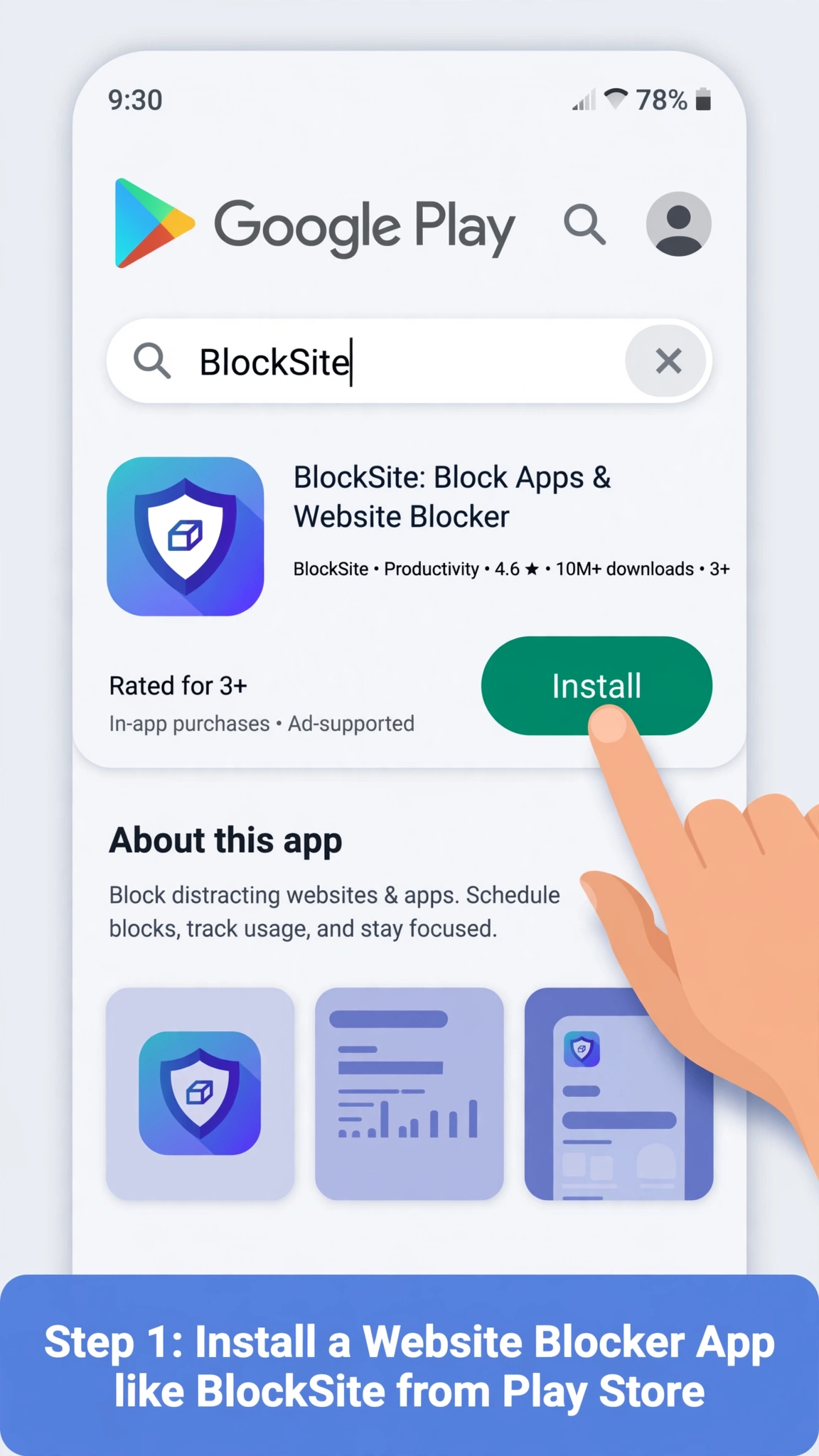
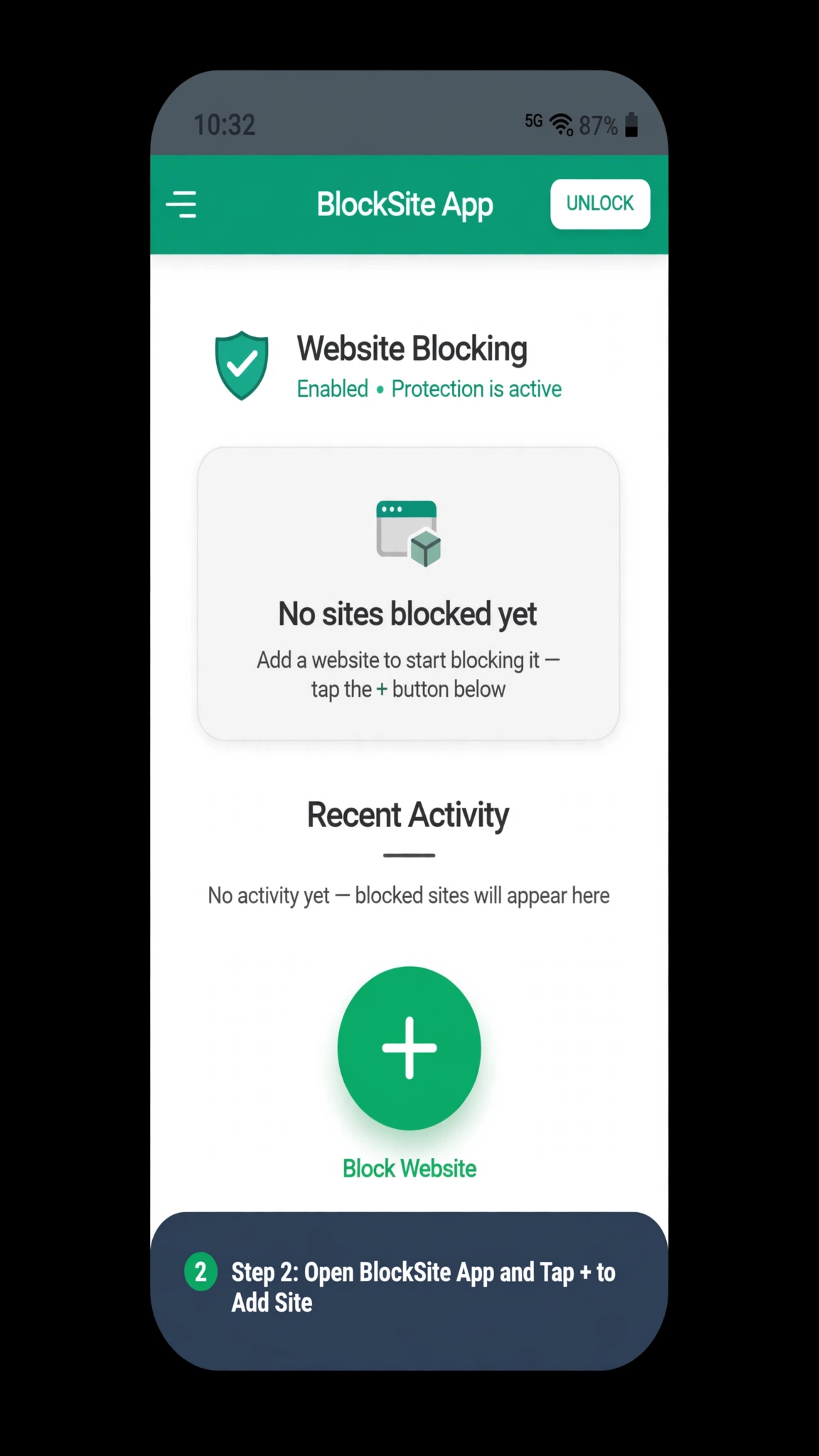
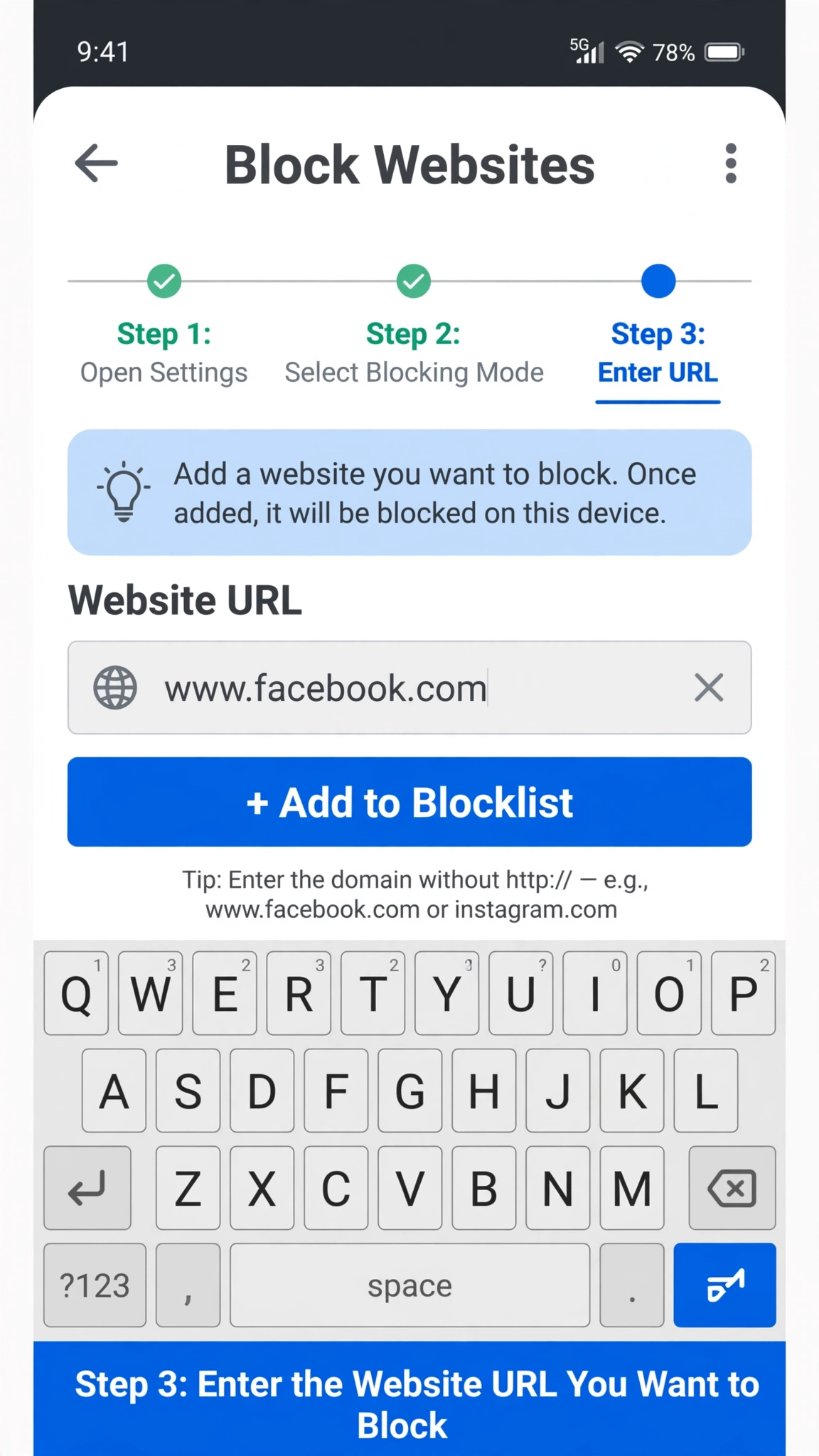
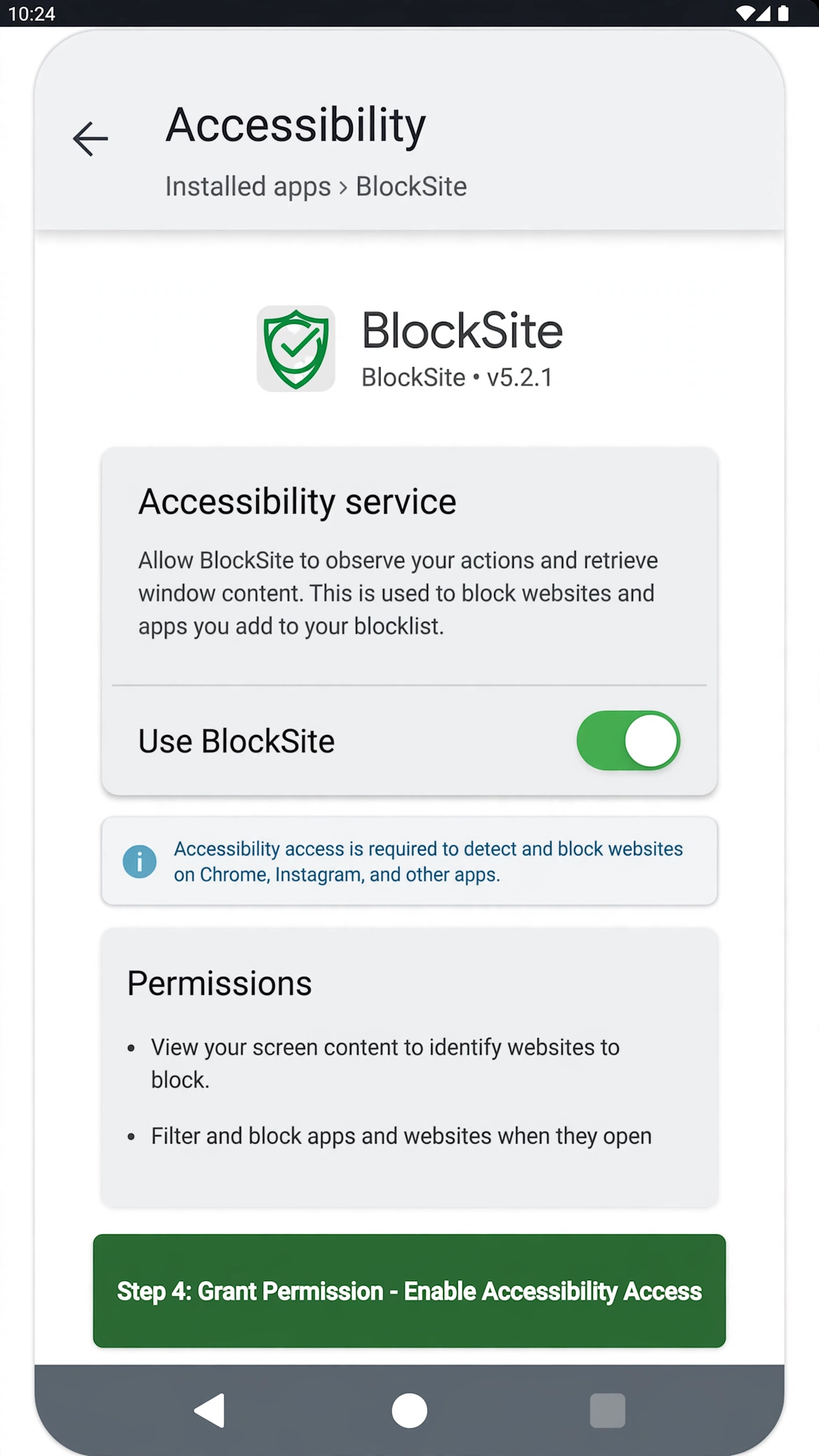
Older Android guides often recommend installing a separate website-blocking application immediately. That can still be useful for certain advanced requirements, but it should not automatically be the first step.
Modern Android provides built-in parental controls, while Family Link provides supervised-account controls. This means users can often accomplish basic filtering without giving a third-party application additional access to the device.
Before installing an external blocker, check whether your Android version already provides the feature you need.
Third-party tools can become relevant when you need functionality that Google’s built-in controls do not provide, such as specialized filtering policies or controls across environments that are not covered by the native system.
Important Limitations You Should Know
No web-filtering system should be treated as perfect.
Google specifically notes that explicit content may still appear through other apps, browsers, or devices even when Android’s web filters are enabled.
There are also practical differences between personal Android accounts and supervised child accounts. Family Link’s controls depend on the account and device configuration, and not every Family Link feature works identically across all platforms. Google lists Android devices running Android 5.0 and newer among the devices that can be supervised, while many supervision features do not work on iPhones, iPads, or ordinary computers.
Another important point is that filtering inappropriate content is different from monitoring a person’s activity. Family Link does not provide parents with remote access to everything happening on a child’s phone, such as remotely viewing the screen, reading messages, or listening to calls.
These limitations are worth understanding before configuring parental controls.
Which Android Method Fits Your Situation?
Your objective should determine the method you use:
| Goal | Suitable Android feature |
|---|---|
| Restrict explicit websites | Android Web Content Filters |
| Filter explicit Google results | SafeSearch |
| Manage a child’s Chrome browsing | Family Link |
| Restrict a particular website | Family Link website controls |
| Reduce time spent on websites | Digital Wellbeing |
| Protect against phishing and malware | Chrome Safe Browsing |
| Manage inappropriate apps as well | Android parental controls / Family Link |
These features can also complement one another. For example, a supervised child’s phone can use Family Link for Chrome restrictions while SafeSearch reduces explicit results in Google Search and Android’s other parental controls manage apps and screen time.
Frequently Asked Questions
1. What happens if you forget the Android parental controls PIN?
If you have added a recovery account while setting up the parental controls PIN, it can be used to help reset the PIN. Android provides a recovery process through the parental-control settings, so adding a recovery account during setup is important.
2. Is blocking a domain different from blocking a specific website URL?
Yes. A specific website address can apply only to that particular site variation, while a domain-level restriction can cover different subdomains and variations associated with that domain. This distinction is especially useful when managing several related web addresses.
3. Can parents approve a website after a child requests access?
Yes. With Family Link’s Chrome controls, a child can request permission to visit a blocked website. Depending on the device, the parent can review the request and approve or deny access.
4. Does Family Link disable Incognito mode for supervised Chrome accounts?
On Android, when a child is signed in to Chrome with an account managed through Family Link, Incognito mode is turned off. This helps ensure that the Chrome restrictions configured for the supervised account remain applicable to the child’s normal browsing experience.
5. Can Android parental controls restrict apps as well as websites?
Yes. Android’s current parental-control system includes controls for apps, including app limits and blocked apps. Family Link can also let parents approve, block, or manage apps available to a supervised child.
[…] safety, workplace focus, or personal digital habits — it’s worth checking our guide on How to Block Websites on Android, which walks through a few reliable methods for controlling site access on mobile […]